Introduction
Overview
When using the device, you need to obtain the device's IP address first. You can refer to the methods described in this document to check the device IP address.
Applicable Models
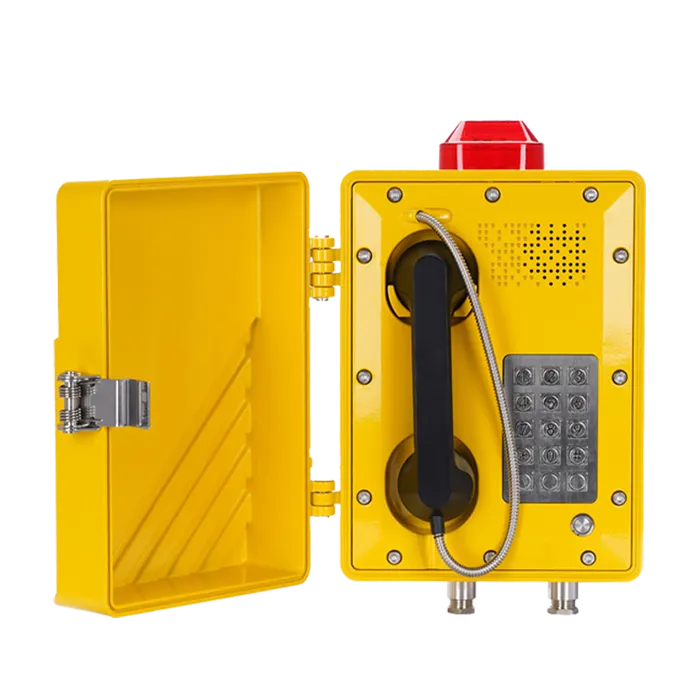
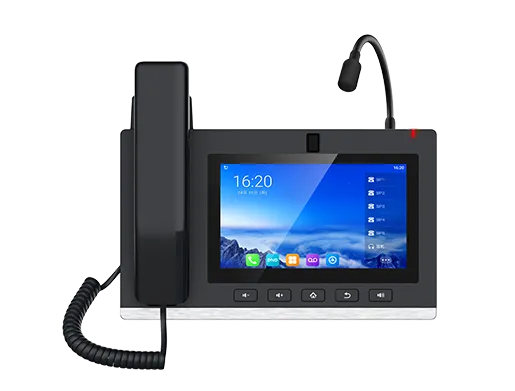
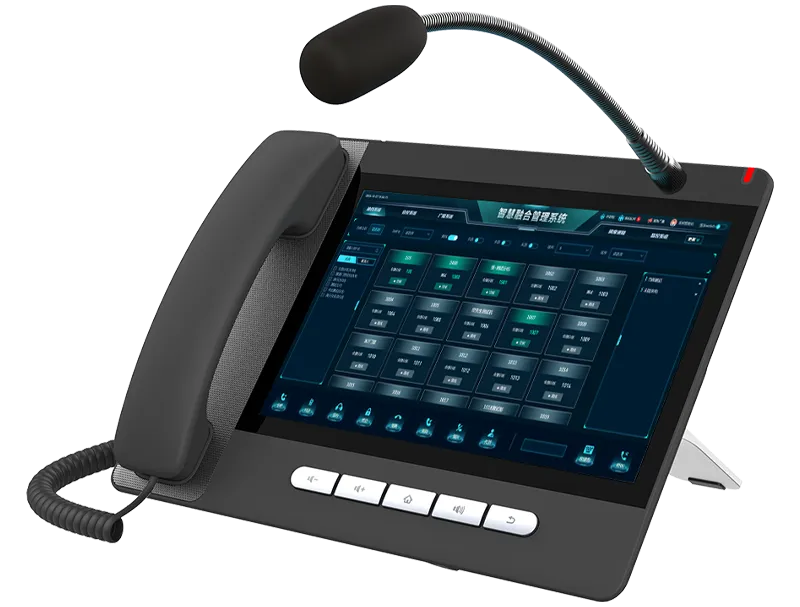
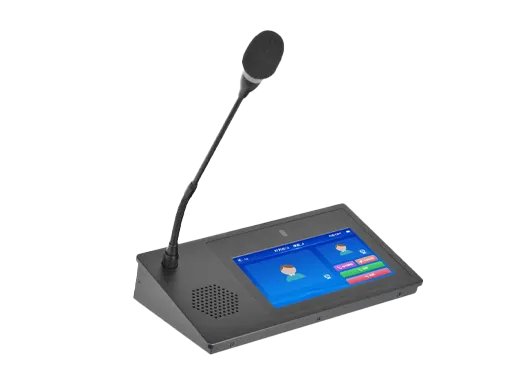
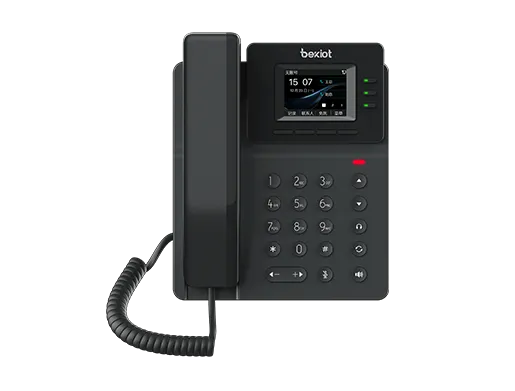
BHP-SOS10 / BHP-SOS10V / BHP-SOS10D
Prerequisite Preparation Tools
① One BHP-SOS10/BHP-SOS10V/BHP-SOS10D device, one PoE switch (or DC power supply). Connect the device to the switch.
② One debugging computer connected to the same switch to ensure network connectivity between the computer and the device.
Device & Computer Connection Diagram
Connect the BHP-SOS10/BHP-SOS10V/BHP-SOS10D to the switch, and connect the computer to the same switch to ensure network communication between the computer and the device. The connection diagram is shown in Figure 1.
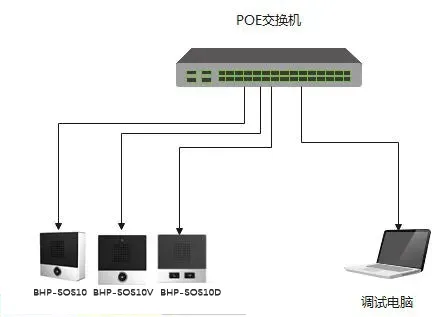
Figure 1
Query IP Address
When the device's IP address is dynamically obtained or forgotten, you can query it through two methods: voice broadcast or IP scanning tool. The following is a detailed introduction to these two methods.
Voice Broadcast
The device can broadcast and query the IP address via the DSS key. The steps to query the IP address using voice broadcast are as follows:
① Device Connection: Connect the WAN port of the BHP-SOS10/BHP-SOS10V/BHP-SOS10D to the PoE switch according to Figure 1. Wait for the device to start and standby (30 seconds after power-on).
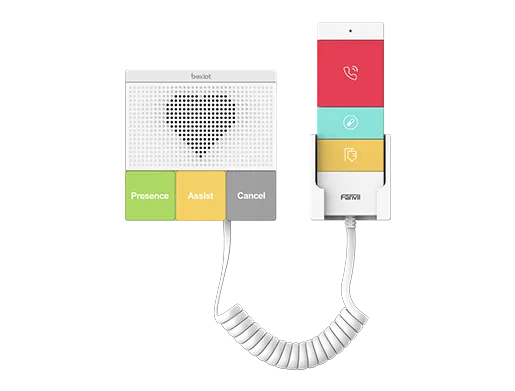
② When the network environment can dynamically obtain an IP: Press and hold the key shown in Figure 2 for about 5 seconds. After hearing the prompt tone, press the key quickly once. The device will automatically broadcast the current IP address.
③ When the network environment cannot dynamically obtain an IP: Press and hold the key shown in Figure 2 for about 5 seconds. After hearing the prompt tone, press the key quickly three times. The device will switch its network mode. After the switch is completed, the device will automatically broadcast the current IP address.
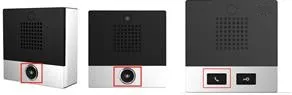
Figure 2
IP Address Scanning Tool
In addition to the device's own voice broadcast, you can also use an IP scanning tool to query the device IP. The following describes how to use the IP address scanning tool:
① Visit the official website (fanvil.com), download the IP address scanning tool, and install it on your computer.
② Set the computer's IP address to the same network segment as the device. Click Refresh to detect all industrial devices on the same LAN segment and display their corresponding model and IP address, as shown in Figure 3.
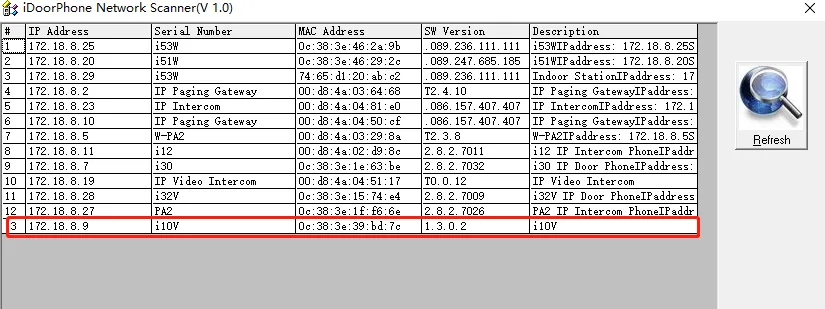
Figure 3