Introduction
Overview
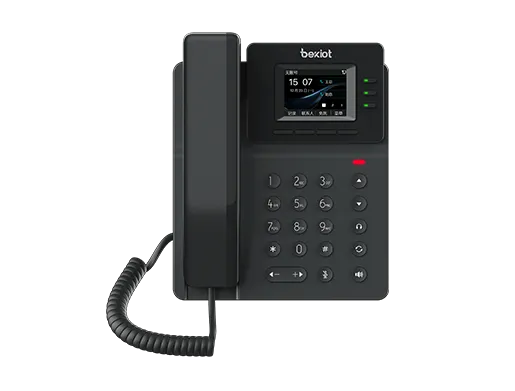
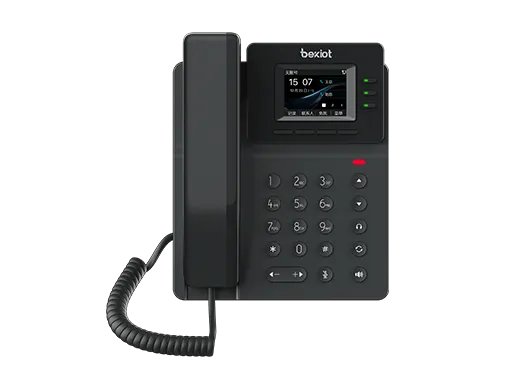
When using an Android IP phone, you can follow the configuration method in this document to preview the video from the working intercom or access control camera.
Applicable Models
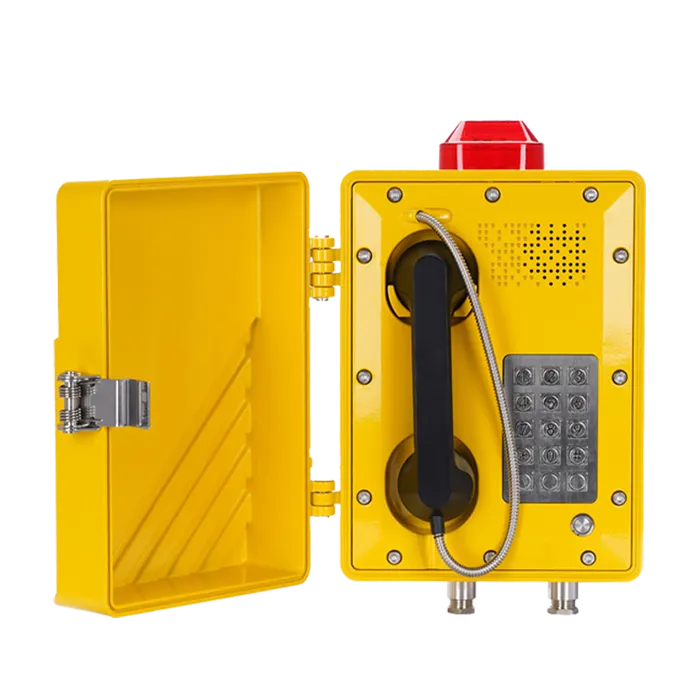
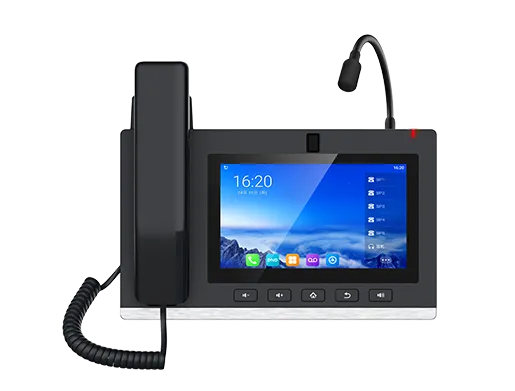
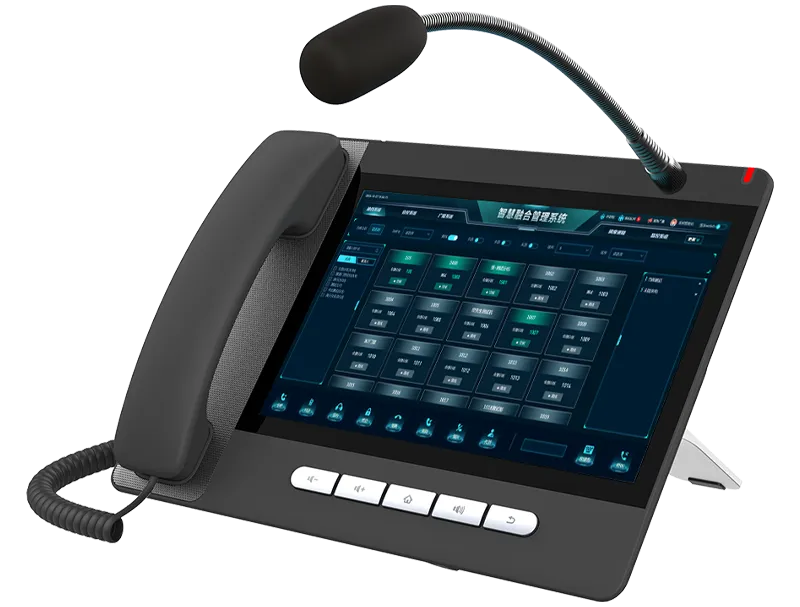
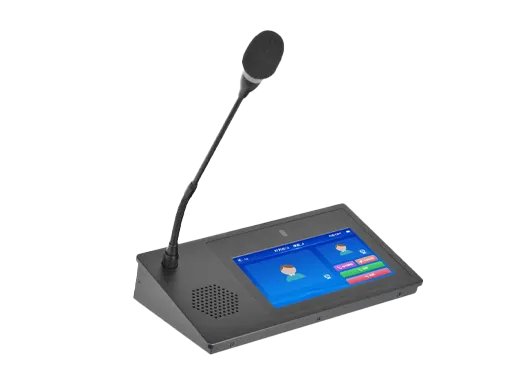
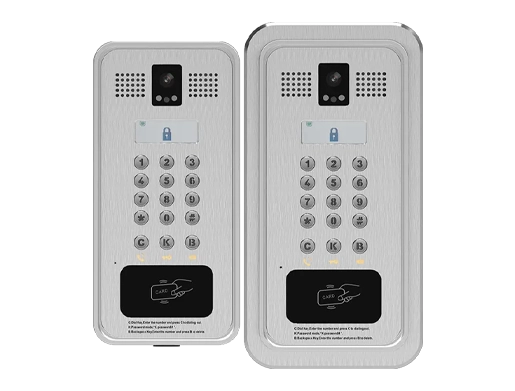
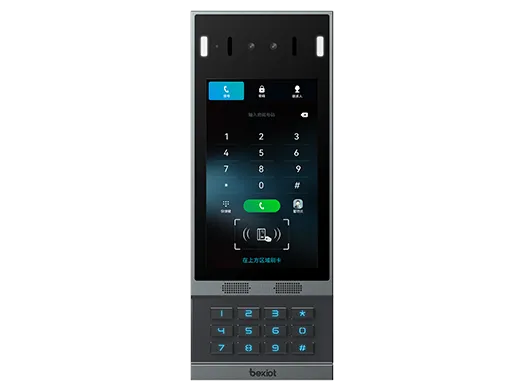
BF600S, BA32,GP32i, GP32V,BX7A
Prerequisite Tools
① One of the following devices:BF600S, BA32,GP32i, GP32V,BX7A; one camera-equipped intercom or access control device (e.g.BHP-SOS16V); one POE switch (or DC power supply). Connect all devices to the switch.
② One debugging computer connected to the same switch to ensure network connectivity between the computer and the IP phone.
Device & Computer Connection Diagram
Connect the devices to the switch and the computer to the same switch to ensure network communication between the computer and devices. The connection diagram is shown in Figure 1.
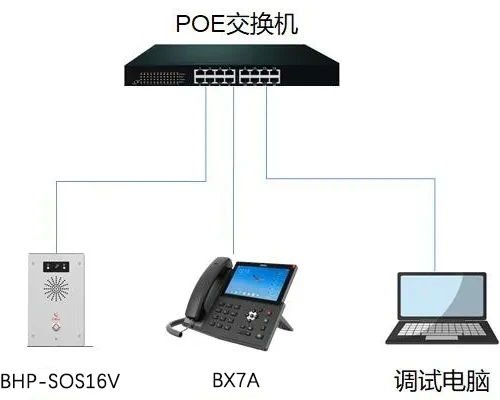
Figure 1
Android IP Phone Preview for Access Control & Intercom Video
Configure Video Preview Shortcut on the IP Phone
① After obtaining the IP address of the intercom, access the intercom configuration webpage and navigate to the Intercom Settings - Camera Settings page to get the device's video stream URL, as shown in Figure 2.
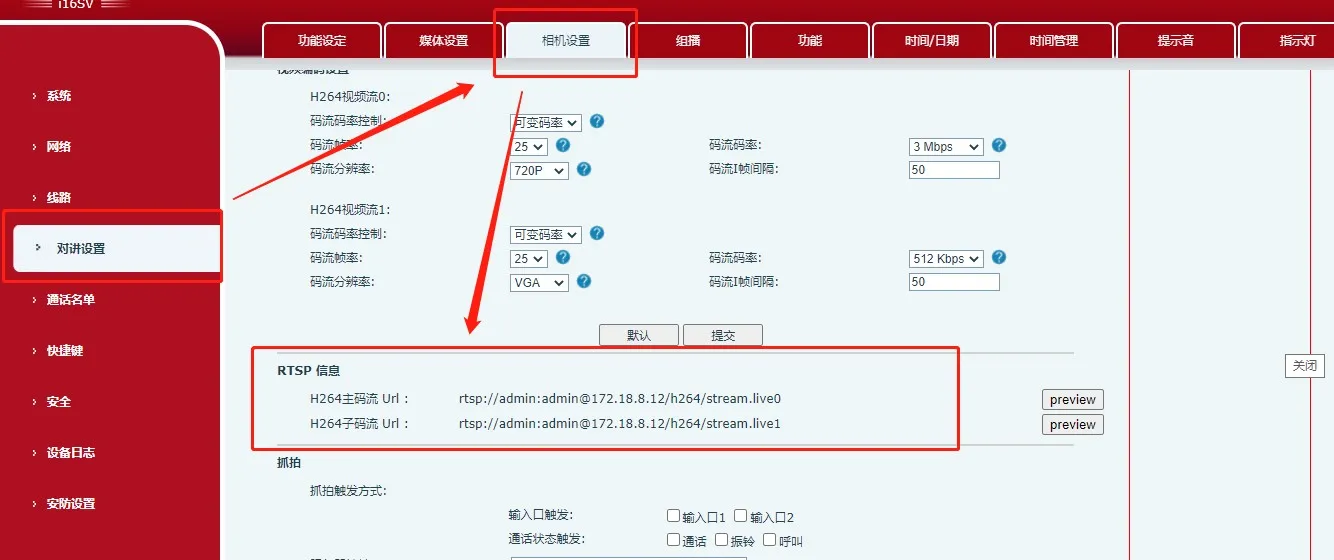
Figure 2
② After obtaining the IP address of the IP phone, access the phone configuration webpage and go to the Shortcuts page to configure the video preview shortcut. Set the type to URL and the value to the video stream URL obtained in Step ①, as shown in Figure 3.
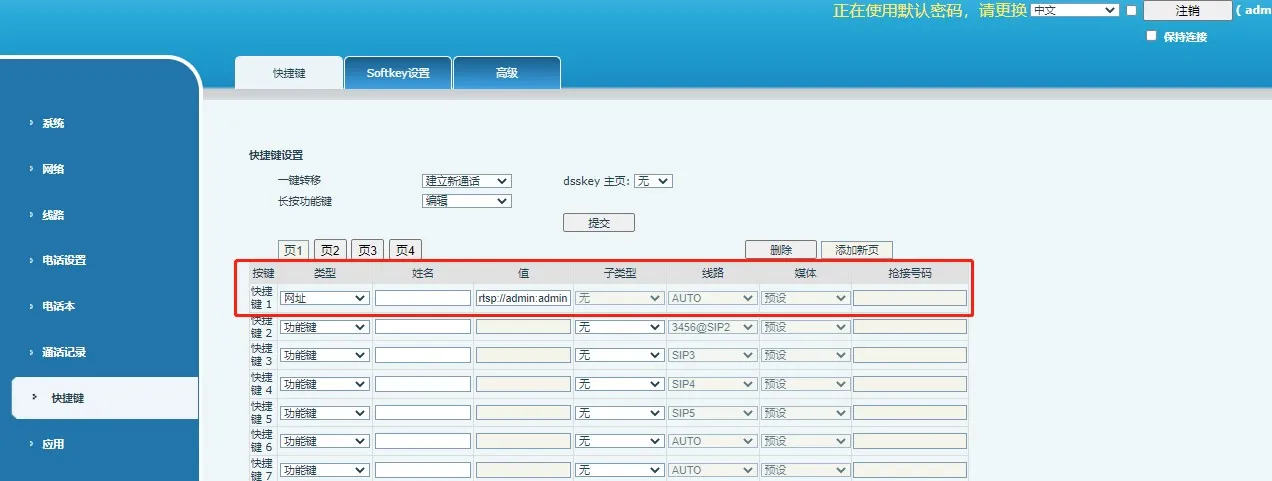
Figure 3