Introduction
Overview
SIP Hotspot is a simple and practical feature with easy configuration. It implements group ringing and expands the number of available SIP accounts.
Set Phone A as the SIP Hotspot, and other phones (B, C) as SIP Hotspot Clients. When someone calls Phone A, A, B, and C will ring simultaneously. When any phone answers the call, all others stop ringing—concurrent answering is not supported. When B or C makes outgoing calls, they use the SIP number registered by Phone A.
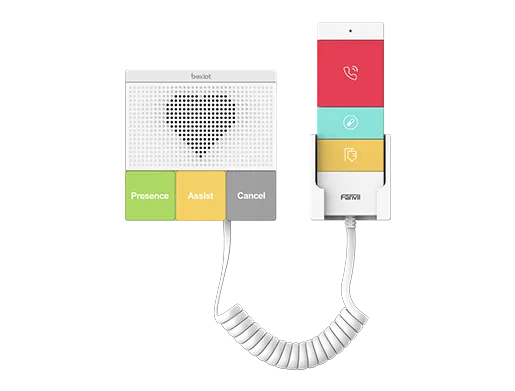
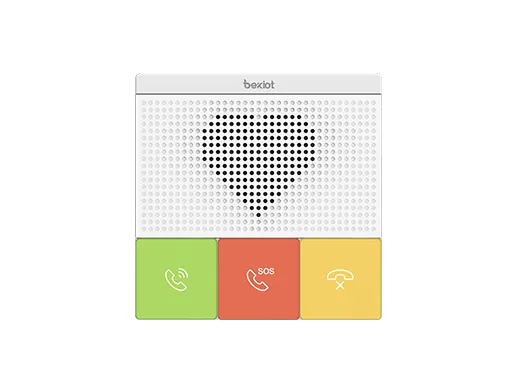
The GP210i can act as a mini PBX, working with other Fanvil products (e.g., BHP-SOS10) to manage extension devices, including remote reboot and firmware upgrade.
Applicable Models
This feature is supported from firmware version V25 onwards. Supported phone models:
- BX Series Phones
- BH Series Phones
- Industrial Series Phones
Feature Example
For a house with phones in the bedroom, living room, and bathroom: Without SIP Hotspot, you need separate SIP accounts for each phone. With SIP Hotspot, only one account is needed for all phones, simplifying management.
Without SIP Hotspot: Only the called phone rings.
With SIP Hotspot: All phones ring simultaneously (group ringing). When one phone answers, others stop ringing.
Usage Instructions
SIP Hotspot Configuration
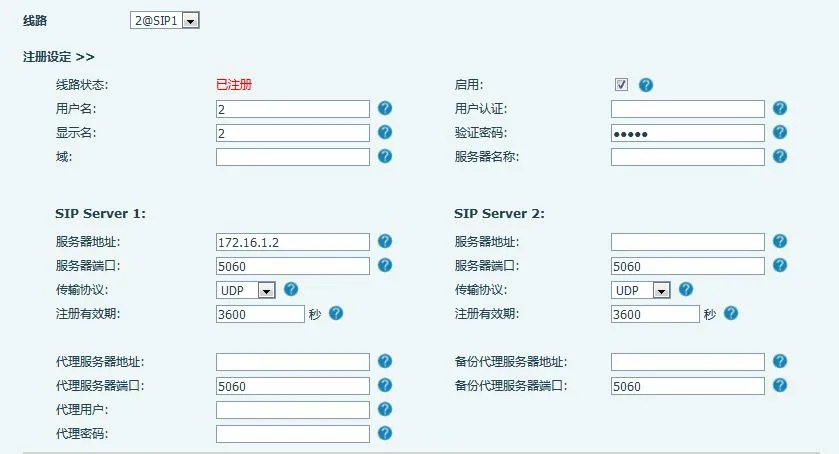
Registered Number Mode
The hotspot server supports SIP registration and distributes extension numbers to clients.
Non-Registered Number Mode (Only X56 Series Supported)
The hotspot server can work without SIP registration while distributing extensions. Number and Server fields are mandatory in this mode.
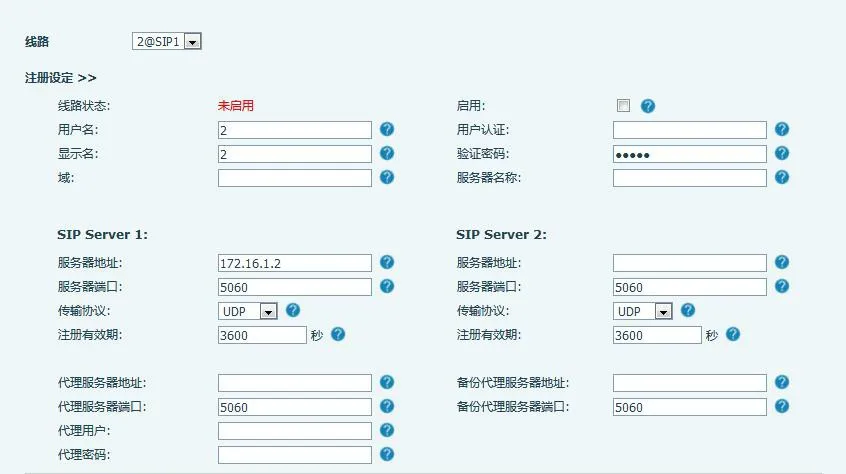
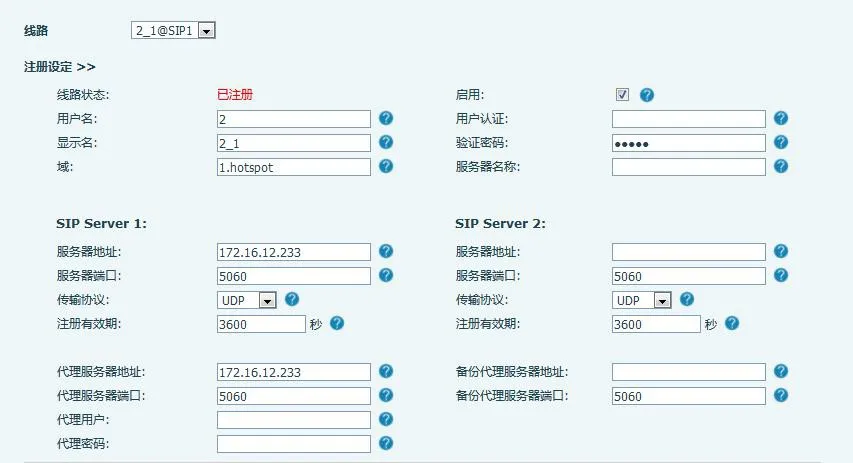
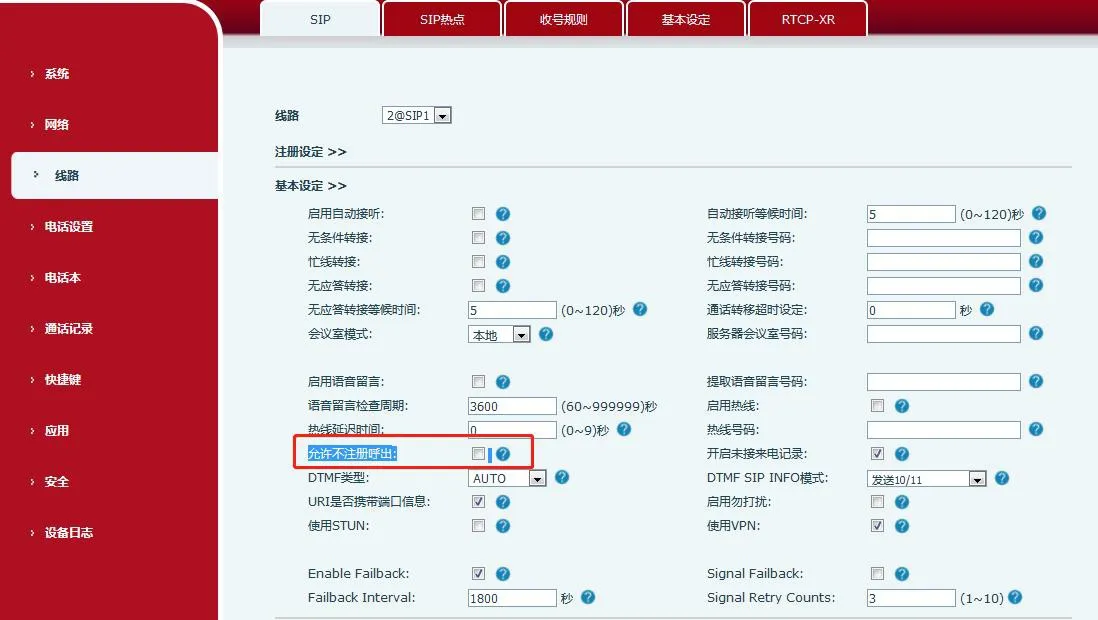
Note: Enable "Dial Without Registered" to allow the server to call extensions.
Configuration path shown below:
SIP Hotspot Setup (BX6 Phone Example)
- Enable Hotspot: Set "Enable Hotspot" to Enabled.
- Mode: Select Hotspot (device acts as SIP Hotspot Server).
- Monitor Type: Choose Broadcast or Multicast. Use Multicast to reduce network broadcast packets. Server and Client must use the same type.
- Monitor Address: Multicast IP for server/client communication (required for Multicast only; Broadcast uses default WAN IP broadcast).
- Local Port: Custom communication port (must match on server and clients).
- Name: Set a name for the SIP Hotspot.
- External Ringing Mode: ALL (Master + Extensions ring), Extension (Only Extensions ring), Master (Only Master rings).
- Line Settings: Enable SIP Hotspot on selected SIP lines.
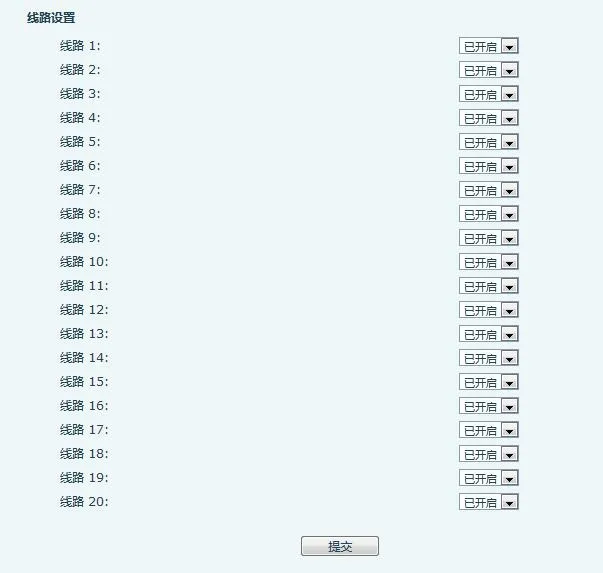
- Connected Devices: Lists online clients and their aliases (extension numbers).
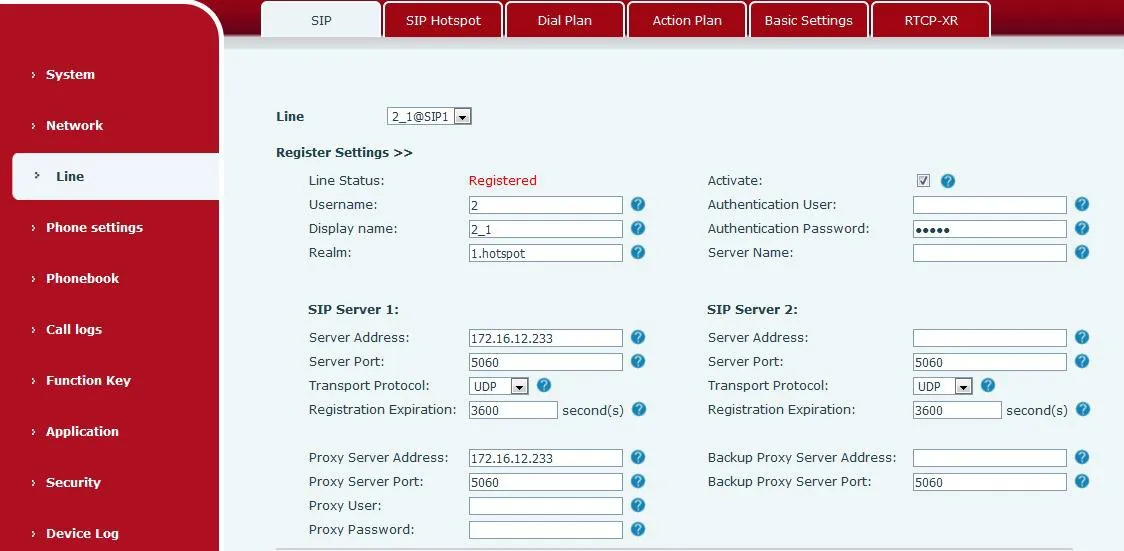
Note: For GP210i as Hotspot Server, see Section 2.2.
GP210i Hotspot Server Configuration
Server Settings
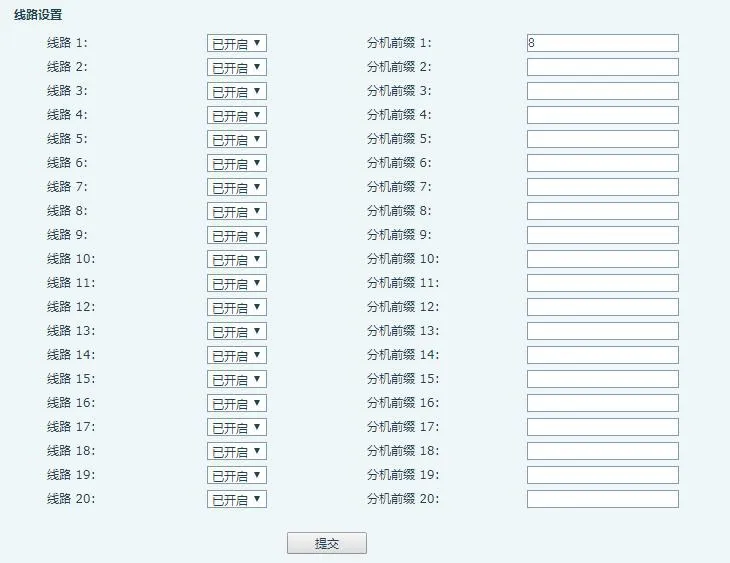
When GP210i acts as Hotspot Server, you can configure an Extension Prefix:
- Enable/disable prefix per SIP line
- Final extension number = Prefix + Assigned Extension Number
Example: Prefix=8, Extension=001 → Final Number=8001
Hotspot Extension Management
Note: When GP210i is the server, manually move devices from "Unmanaged Extensions" to "Managed Extensions".
Managed extensions support remote reboot, upgrade, and group ringing. Management Mode: 0=Unrestricted access, 1=Allowed devices only.
1. Unmanaged Extensions
The server auto-assigns accounts to clients and lists them here.

- MAC: Device MAC address
- Model: Device model
- Version: Firmware version
- IP: Device IP address
- Ext: Assigned extension number
- Status: Online/Offline
- Registered Number: Master SIP account
- Delete: Remove device
- Move to Managed: Grant management permissions
2. Managed Extensions
Supports reboot, upgrade, edit, grouping, and deletion.

- Extension Name: Device label
- MAC: MAC address
- Model: Device model
- Version: Firmware version
- IP: IP address
- Ext: Extension number
- Group: Assigned group
- Status: Online/Offline
- Registered Number: Master SIP account
- Edit: Modify name/MAC/ext/group
- Add: Manually add device (MAC required)
- Delete: Remove device
- Upgrade: Remote firmware upgrade
- Reboot: Remote reboot
- Add to Group: Assign to group
- Move to Unmanaged: Revoke management
3. Hotspot Groups
Dial the group number to trigger group ringing for all members.
- Name: Group label
- Number: Group ringing number
- Edit: Modify group
- Add: Create new group
- Delete: Remove group
Extension Upgrade
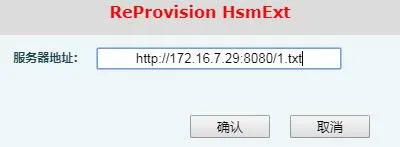
To upgrade managed devices, enter the Upgrade Server URL and confirm. The device will download and update firmware.
SIP Hotspot Client Setup
Take BX6 as Client: No manual SIP account configuration required. The client auto-obtains settings from the hotspot.
- Set Mode to Client
- Match all other settings (Monitor Type/Port/Address) with the Hotspot Server
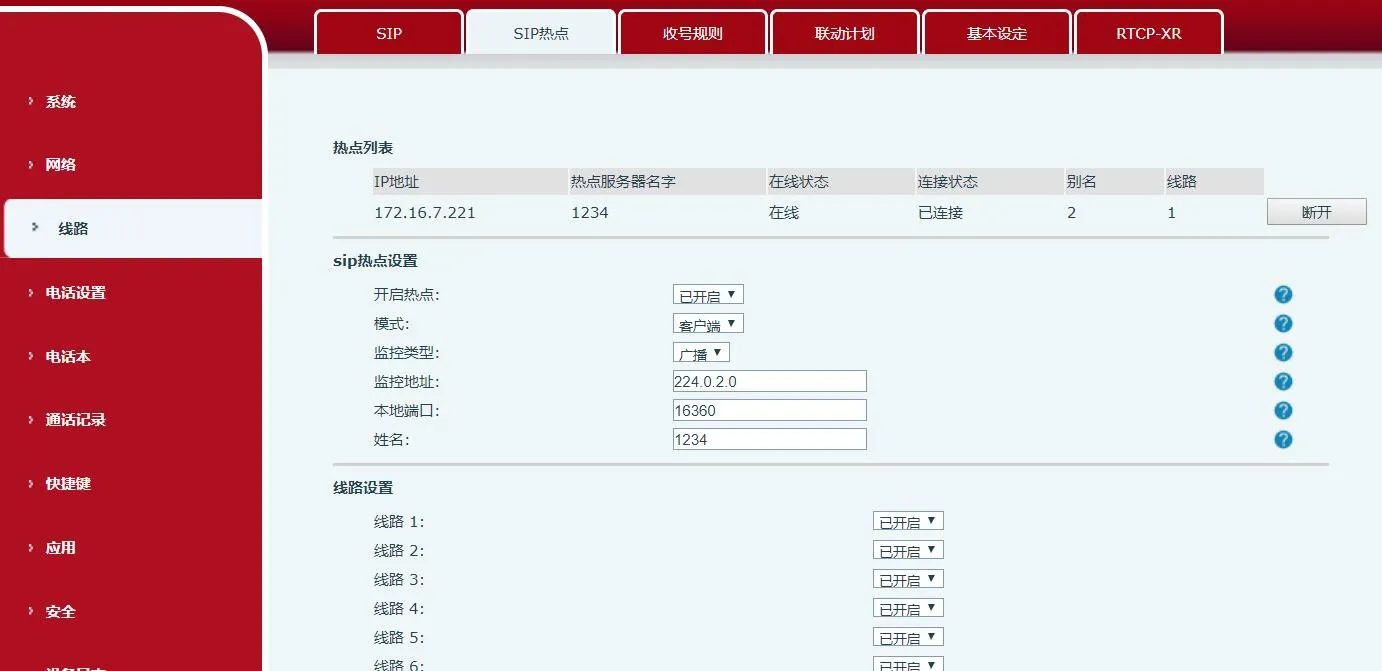
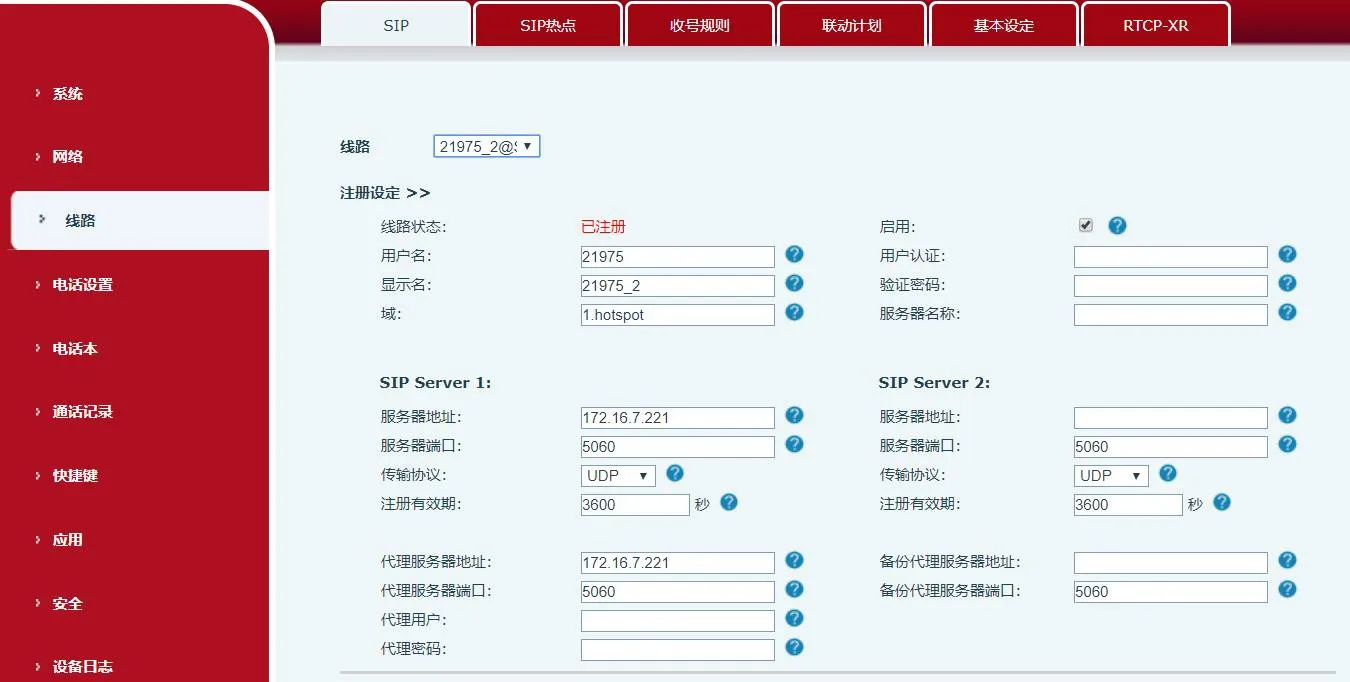
The server IP and display names auto-populate:
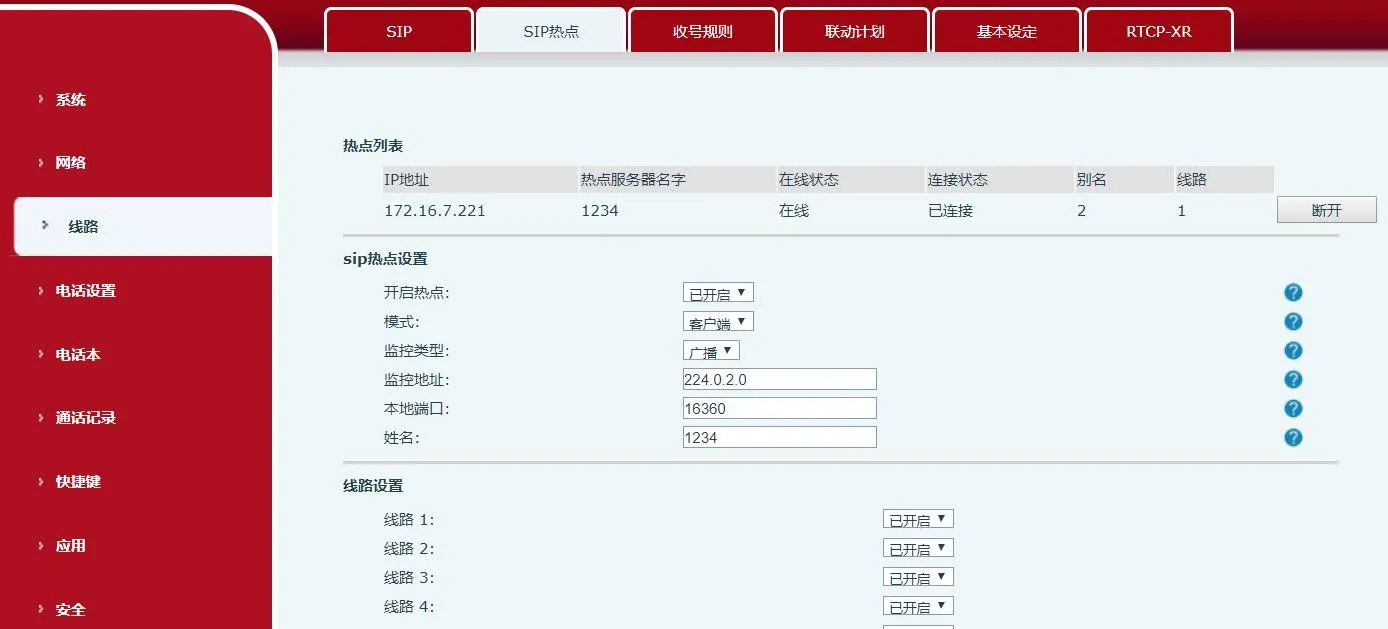
The Hotspot List shows connected hotspots (e.g., IP:172.16.7.221, Line:0). Dial 0 to call the Hotspot Master. Click Disconnect to terminate the connection.
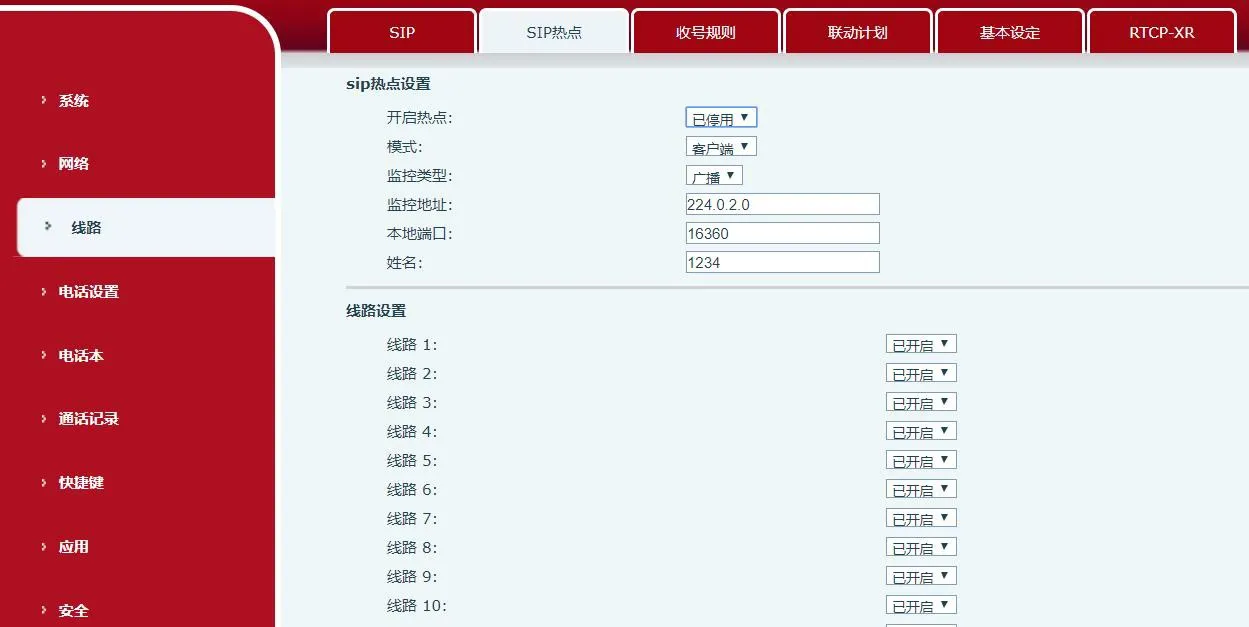
When disabling SIP Hotspot:
• Client: Clears registration info
• Master: Retains registration info
Important Notes:
- Multiple hotspots on the same network require unique monitor address segments
- Both Hotspot and Clients can make external calls
- Hotspot supports call transfer; Clients support basic calls only
- X5S/X6: Changes take effect immediately; X3S/X4/BH: Require reboot
Call Operations
1. Extension-to-Extension Calls
- With Extension Prefix:
- Master → Ext: 8000 → 8001
- Ext → Master: 8001 → 8000
- Ext → Ext: 8001 → 8002
- Without Prefix:
- Master → Ext: 0 → 1
- Ext → Master: 1 → 0
2. External Call to Master/Extensions
Dial the Master’s external number. All devices (Master + Extensions) ring simultaneously. The first to answer connects the call.
3. Master/Extension Calling External
Dial the external number directly from the Master or any Client.