Introduction
Overview
This guide explains how to configure the security features of our access control and intercom products.
Applicable Models
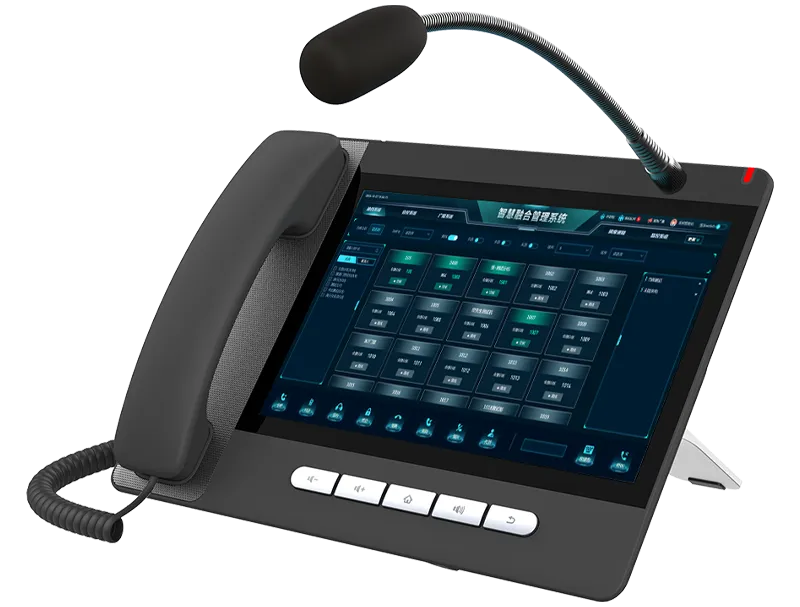
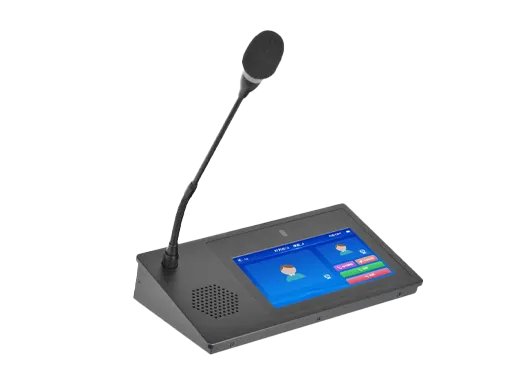
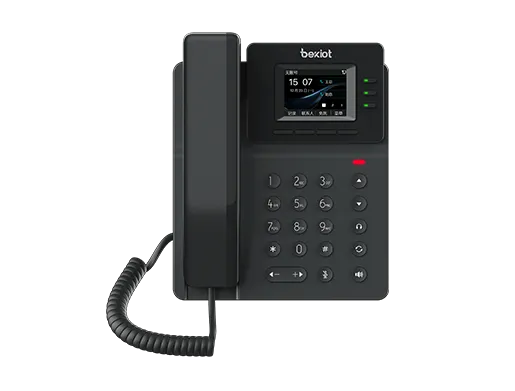
Access control, intercom, and other industry-specific terminals.
Prerequisites
① One access control device (Bi64 is used as the example in this guide), powered by a PoE switch or a DC power supply.
② One configuration PC connected to the same switch, with confirmed network connectivity to the indoor unit.
Procedure
Interface Description
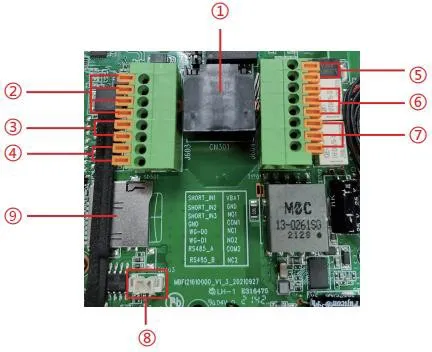
Remove the rear cover of the device to access the terminal block used for power input, electric lock control, and related connections, as shown below:
|
No. |
Description |
|
① |
Ethernet port: standard RJ45, 10/100 Mbps adaptive, recommended for Cat5 or Cat5e cable. |
|
② |
Three dry-contact input detection ports for switches, infrared sensors, door contacts, vibration sensors, and other input devices. |
|
③ |
Wiegand interface. Wiegand In is used for external card readers, and Wiegand Out can connect to access control controllers and related devices. |
|
④ |
RS485 interface. |
|
⑤ |
Power input: 12V/1A, positive on the upper terminal and negative on the lower terminal. |
|
⑥、⑦ |
Two dry-contact output control ports for electric locks, alarm devices, and other controlled equipment. |
|
⑧ |
Line Out interface for hearing-assistance equipment. |
|
⑨ |
TF card slot, supporting up to 128 GB, used for storing snapshots and audio files. |
Web Security Settings Interface
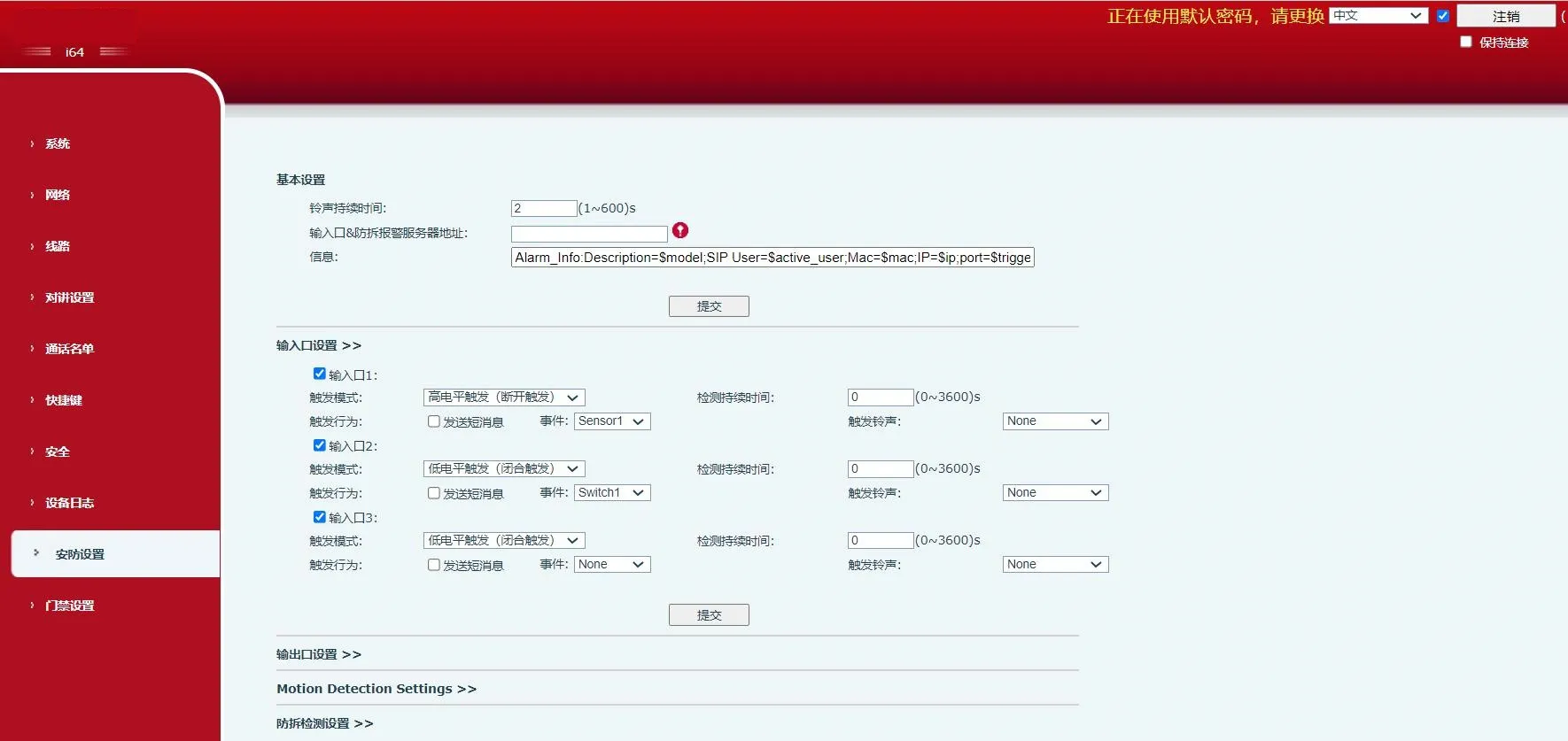
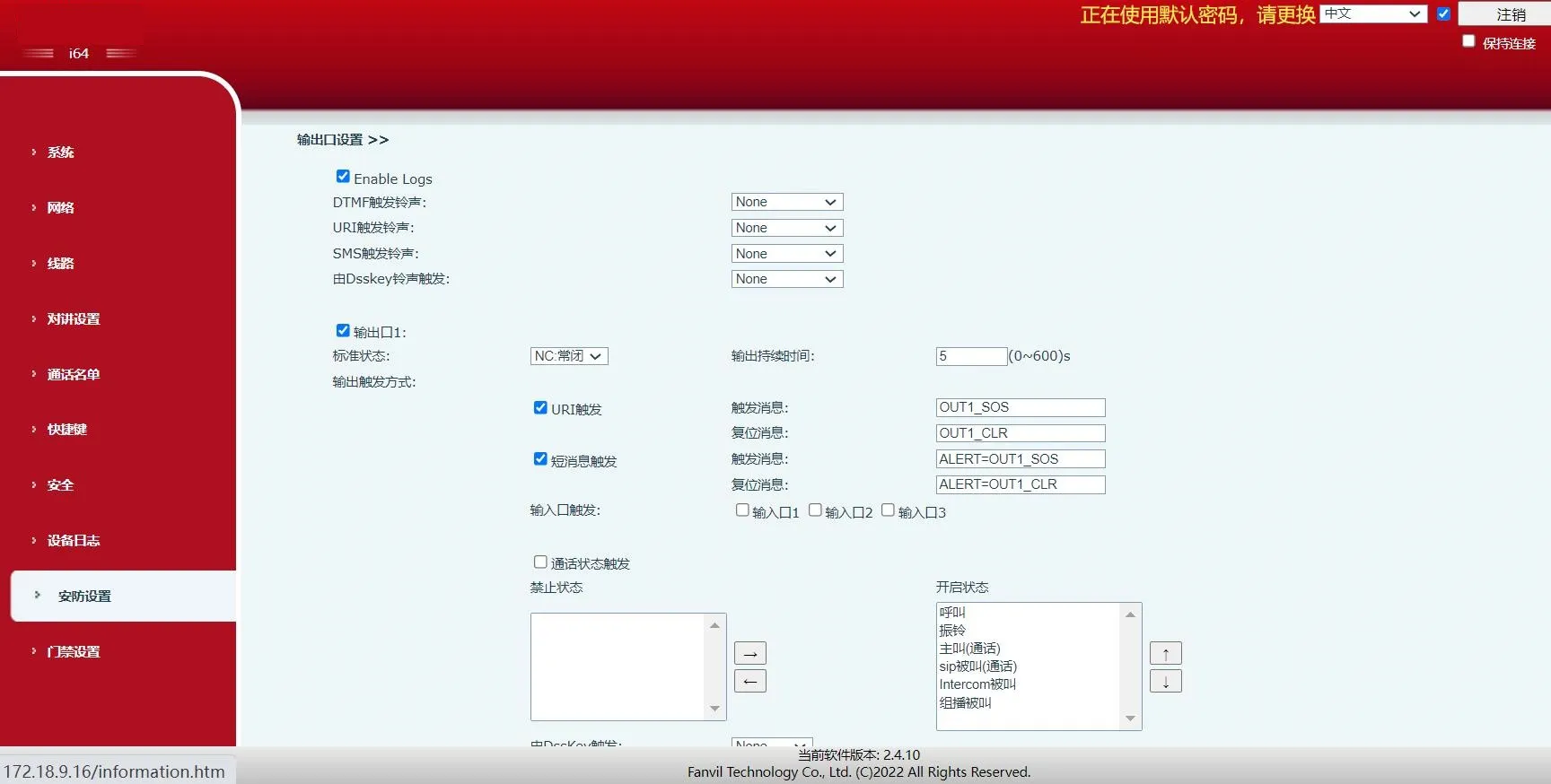
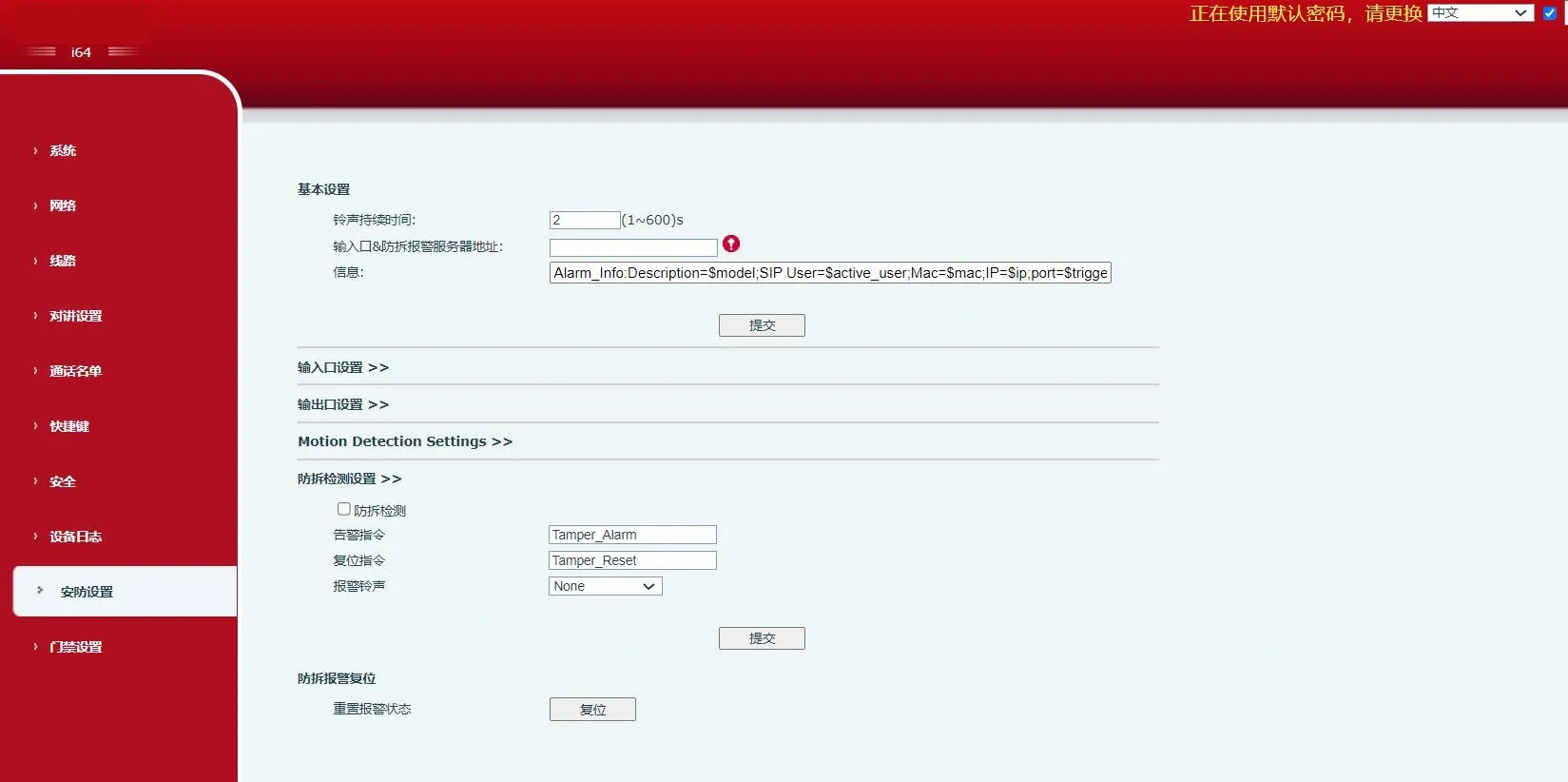
Dry-Contact Input and Output Configuration
1. Dry-contact input ports:
Input ports can be connected to door contacts, infrared detectors, vibration sensors, or emergency buttons to trigger preset actions.
1) Report an event to the server by message.
A user can send an SMS-style message from any compatible phone to the device.
Message format: ALERT=[message].
For example, with the default configuration, you can send ALERT=OUT1_SOS.
2) Dry-contact input actions.
An external device connected to the input port can trigger an event in either of the following modes:
High-level trigger (open-circuit trigger)
Low-level trigger (closed-circuit trigger)
2. Dry-contact output ports:
Output ports can be connected to electric locks, warning lights, camera alarm inputs, and similar devices to trigger preset actions.
1) Receive output-control messages from the server and trigger the output port accordingly.
On the web page, enable remote SMS trigger. When the device receives a message in the format ALERT=[message], the output action will be triggered.
2) Link an output port to an input port.
On the web page, enable input trigger so that a selected logic input can activate the corresponding output.
3) Receive remote DTMF commands and trigger the output after validation.
On the web page, enable remote DTMF trigger. In the example shown, the default trigger code is 1234. During a call between the device and a phone, entering 1234 changes the output port state. Press # after the DTMF code to trigger the output immediately.
4) Link the output to call status events.
After a call status is selected, the device starts the alarm when that status begins, and stops the alarm automatically when the status ends.
Security Parameters
| Security Settings |
| Parameter | Description |
| Basic Settings |
|
Ring Duration |
Duration of the alarm ringtone. |
|
Server Address |
Configures the remote response server address, including the remote response server and alarm trigger server. When an input port is triggered, the device sends a message to the server in a format similar to:
Alarm_Info:Description=i16SV;SIP User=;Mac=0c:38:3e:39:6a:b6;IP=172.16.7.189;port=Input |
|
Message |
Custom information appended when uploading to the server. |
| Input Port Settings |
|
|
Input Port |
Enables or disables the input port. |
|
Trigger Mode |
When Low Level Trigger (closed trigger) is selected, the device detects a closed low-level condition on the input port. |
|
When High Level Trigger (open trigger) is selected, the device detects an open high-level condition on the input port. |
|
Detection Duration |
Sets how long the trigger condition must persist before it is considered valid. |
Trigger Action:
Send Message |
Enables or disables message reporting from the input port to the server. |
|
Event |
Defines the event associated with the input trigger, such as door contact, switch, or DSS key. |
|
Trigger Ringtone |
Supports ringtone selection. |
| Output Port Settings |
|
Enable Logs |
Enables or disables log recording. |
|
DTMF Trigger Ringtone |
Supports ringtone selection. |
|
URI Trigger Ringtone |
Supports ringtone selection. |
|
SMS Trigger Ringtone |
Supports ringtone selection. |
DSS Key Trigger
Ringtone |
Supports ringtone selection. |
|
Output Port |
Enables or disables the output port. |
|
Default State |
When Low Level (NO: Open) is selected, the NO port opens when the trigger condition is met. |
|
When High Level (NC: Closed) is selected, the NC port closes when the trigger condition is met. |
|
Output Duration |
Duration of the output state change. The default value is 5 seconds. |
|
Input Port Trigger |
When the selected input port meets the trigger condition, the output port is activated for the period defined by Output Duration. |
|
DTMF Trigger |
Receives a DTMF code from a remote device and triggers the corresponding output port if the code is correct. |
|
DTMF Trigger Code |
During a call, the terminal receives a DTMF code from the remote device. If the code is correct, the corresponding output port is triggered. The default value is 1234. |
|
DTMF Reset Code |
During a call, the terminal receives a DTMF code from the remote device. If the code is correct, the corresponding output port is reset. The default value is 4321. |
|
Reset Mode |
By Duration |
The output state change is controlled by Output Duration. |
By Call
Status |
The output is controlled by call status and returns to its default state when the call state ends. |
|
URI Trigger |
Enables or disables URI-based triggering.
If a valid command is sent from a remote device or server, the corresponding output port is triggered or reset. |
|
Trigger Message |
Message sent after the output port is triggered. |
|
Reset Message |
Message sent after the output port is reset. |
|
SMS Trigger |
Enables or disables SMS-based triggering.
If a remote device or server sends ALERT=[command] and the command is correct, the corresponding output port will be triggered or reset. |
|
Trigger Message |
Message sent after the output port is triggered. |
|
Reset Message |
Message sent after the output port is reset. |
|
Input Port Trigger |
Selects which input port can be used to trigger the current output port. |
|
Call Status Trigger |
Defines continuous output behavior based on call status. Example trigger conditions include:
1. Talking
2. Ringing
3. Calling |
|
DSS Key Trigger |
Uses a DSS key to trigger the output. |
Triggered
Hangup |
Triggers the output after the call is disconnected. |
|
Hangup Delay |
Delay before the hangup trigger is activated. The default value is 5 seconds. |
| Motion Detection Settings |
Motion Detection
Alarm |
Enables or disables motion detection. |
Trigger
Duration |
Sets the trigger delay time. The default is 3 seconds, with a range of 0 to 3600 seconds. |
|
Trigger Ringtone |
Supports ringtone selection. |
Trigger Action:
Send Message |
Enables or disables sending a message to the server when the motion detection alarm is triggered. |
|
Function Key |
When set as dsskey1 or dsskey2, pressing the DSS key triggers a call. The default value is none. |
| Tamper Detection Settings |
|
Tamper Detection |
Enables or disables tamper detection. If the terminal is forcibly removed, the tamper alarm is triggered and the configured alarm ringtone continues to play. |
|
Alarm Command |
When the alarm is triggered, the terminal sends the configured alarm command to the server. |
|
Reset Command |
To stop the alarm ringtone, a remote device can send a message to the terminal. If the message content matches the value configured in Reset Command, the terminal will stop playing the alarm ringtone. |
|
Alarm Ringtone |
Defines the ringtone used for the alarm. |
| Tamper Alarm Reset |
|
Reset Alarm Status |
Stops alarm playback and clears the active alarm state. |