Introduction
Overview
After the SIP account information is configured and submitted, the phone displays a registration failure message.
Applicable Models
Supported products: all phone models.
Supported firmware: all firmware versions available for the supported models.
Intended Users
This document is intended for users who need to troubleshoot SIP account registration failures.
Solutions
Select the Problem Type
Scenario 1: Registration times out immediately after the account settings are submitted.
Scenario 2: Registration times out after the phone has been working normally for a period of time.
Scenario 3: Registration fails and an error code is returned.
Scenario 4: After running normally for some time, the phone suddenly goes offline and loses network connectivity. After restarting the phone, the network connection returns.
Scenario 5: The phone shows as registered, but the PBX reports the extension as offline or unregistered.
Troubleshooting and Solutions
Registration times out immediately after the account settings are submitted
1. Symptom:
After the SIP account parameters are configured and submitted, the phone shows Registering.... After a period of time, the status changes to Registration Timeout.
2. Possible Causes:
The phone sends a registration request but never receives a response from the server, which causes the registration to time out.
① There may be a network issue between the phone and the server, or the SIP parameters may be incorrect, such as an incorrect server address or port.
② The account may have been temporarily blacklisted by the system. In some IMS environments, repeated registration attempts using the same account may be treated as suspicious behavior, and the account may be blocked for a period of time, for example 10 minutes.
③ When the phone is located on a private LAN and registers to a public server, the server response may not be able to reach the internal phone correctly.
3. Solutions:
① Confirm that the network path between the phone and the server is working properly and that both sides can be reached, for example by Ping. Also verify that all SIP account parameters are correct, especially the server address and port.
② Wait for a while before submitting the registration again, or create a new account on the server. Avoid using the same account repeatedly on different phones.
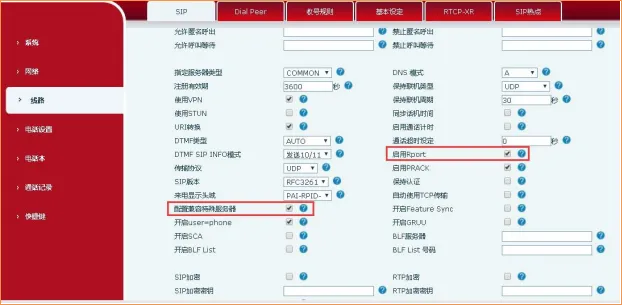
③ If an internal phone is registering to a public SIP server, enable rport and Special Server Compatibility on the phone, then register again.
Registration times out after the phone has been working normally for some time
1. Symptom:
The phone registers successfully and works normally, but after some time, usually about a day, the status changes to Registration Timeout. The phone can no longer make or receive calls. Restarting the phone or changing the local SIP port allows it to register successfully again.
2. Possible Causes:
This situation is often seen in environments using certain routers. If the router is power-cycled or receives a new public IP address, packets from the phone may still be translated using the router’s old public IP. As a result, the server response cannot be delivered back to the phone, causing registration to time out.
After the phone is restarted or the local registration port is changed, the router rewrites the source address correctly and registration succeeds again.
3. Solution:
Newer firmware versions support a dynamic local SIP port mechanism. When registration fails or times out, the phone can automatically try again using a different local port. Download the latest firmware from the official website or contact technical support to confirm version compatibility.
Registration fails and an error code is returned
1. Symptom:
After the SIP account information is configured and submitted, the phone displays a registration failure message.
① Error code 403
② Error code 404
③ Error code 423
④ Error code 5xx
2. Possible Causes:
① This usually means the username or password is incorrect, or the account has been disabled on the server.
② This means the account does not exist.
③ This means the registration interval is too short.
④ This indicates a server-side fault.
3. Solutions:
① Recheck the username and password, and confirm the account status with the system administrator.
② Contact the administrator to verify whether the account exists.
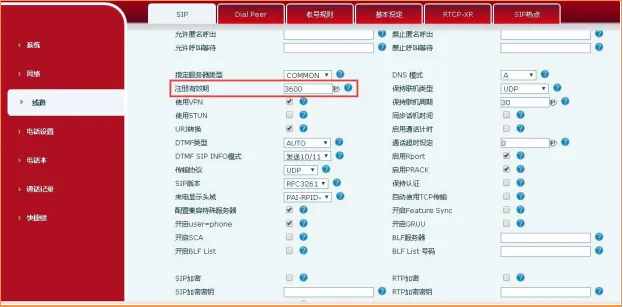
③ Increase the registration expiry interval on the phone.
④ Contact the administrator to check the SIP server status.
After running normally for some time, the phone suddenly goes offline and loses network connectivity
1. Symptom:
After the phone has been working for a period of time, it suddenly drops registration and loses network connectivity. Restarting the phone restores the network connection.
2. Possible Cause:
Some Cisco switches and certain Layer 2 switches use ARP aging timers that may differ from the timer used by the phone system. If the switch ARP entry expires earlier than expected, the phone network connection may be interrupted.
3. Solution:
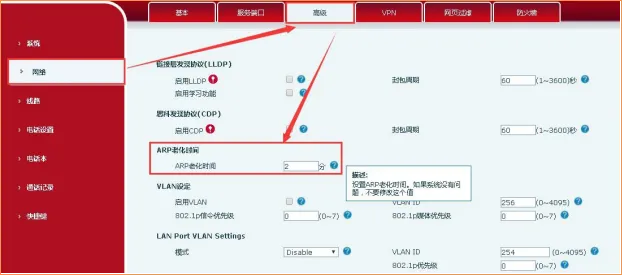
Upgrade the phone to the latest firmware version. Newer firmware supports manual configuration of the ARP aging timer. In the phone web interface, go to Network - Advanced - ARP Aging Time and set the value from 1 to N minutes as needed.
The phone shows registered, but the PBX shows offline or unregistered
1. Symptom:
The phone display shows the extension as registered, but the PBX reports it as offline or not registered.
2. Possible Cause:
In some network environments, IP routing or NAT may remain active, but NAT keep-alive is not enabled on the PBX or the phone. After SIP registration completes, there is no ongoing UDP keep-alive traffic, so the NAT device removes the mapping after the default UDP timeout, often 60 seconds.
3. Solution:
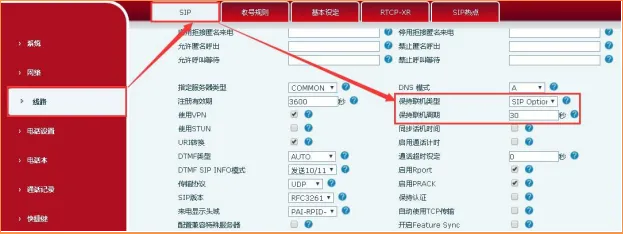
Log in to the phone WEB Interface - Line - Advanced Settings, then adjust the keep-alive type and interval according to the SIP server requirements. You can also try SIP OPTION or UDP. The keep-alive interval should be set to less than 60 seconds.
The following examples use the X4U phone as a reference for configuration.
How to enable rport and Special Server Compatibility
Go to the phone web management page and click Line - Advanced Settings, then check Enable Rport and Configure Special Server Compatibility, then click Submit at the bottom of the page, as shown below:
How to enable local Port Update
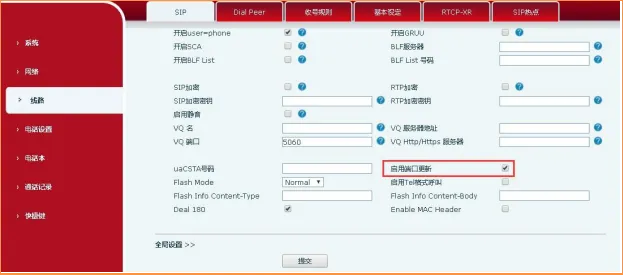
Go to the phone web management page and click Line - Advanced Settings, then check Enable Port Update, then click Submit at the bottom of the page, as shown below:
How to change the Registration Expiry time
Go to the phone web management page and click Line - Advanced Settings - Registration Expiry, modify the registration interval, then click Submit at the bottom of the page, as shown below:
How to change the ARP Aging Time
Go to the phone web management page and click Network - Advanced - ARP Aging Time, set the value from 1 to N as needed, preferably matching the switch aging timer, then click Submit at the bottom of the page, as shown below:
How to change the Keep-Alive Type
Go to the phone web management page and click Line - Advanced Settings - Keep-Alive Type. Select the mode supported by the SIP server, or try SIP OPTION or UDP, then click Submit at the bottom of the page, as shown below: